
Group Policy Management
-
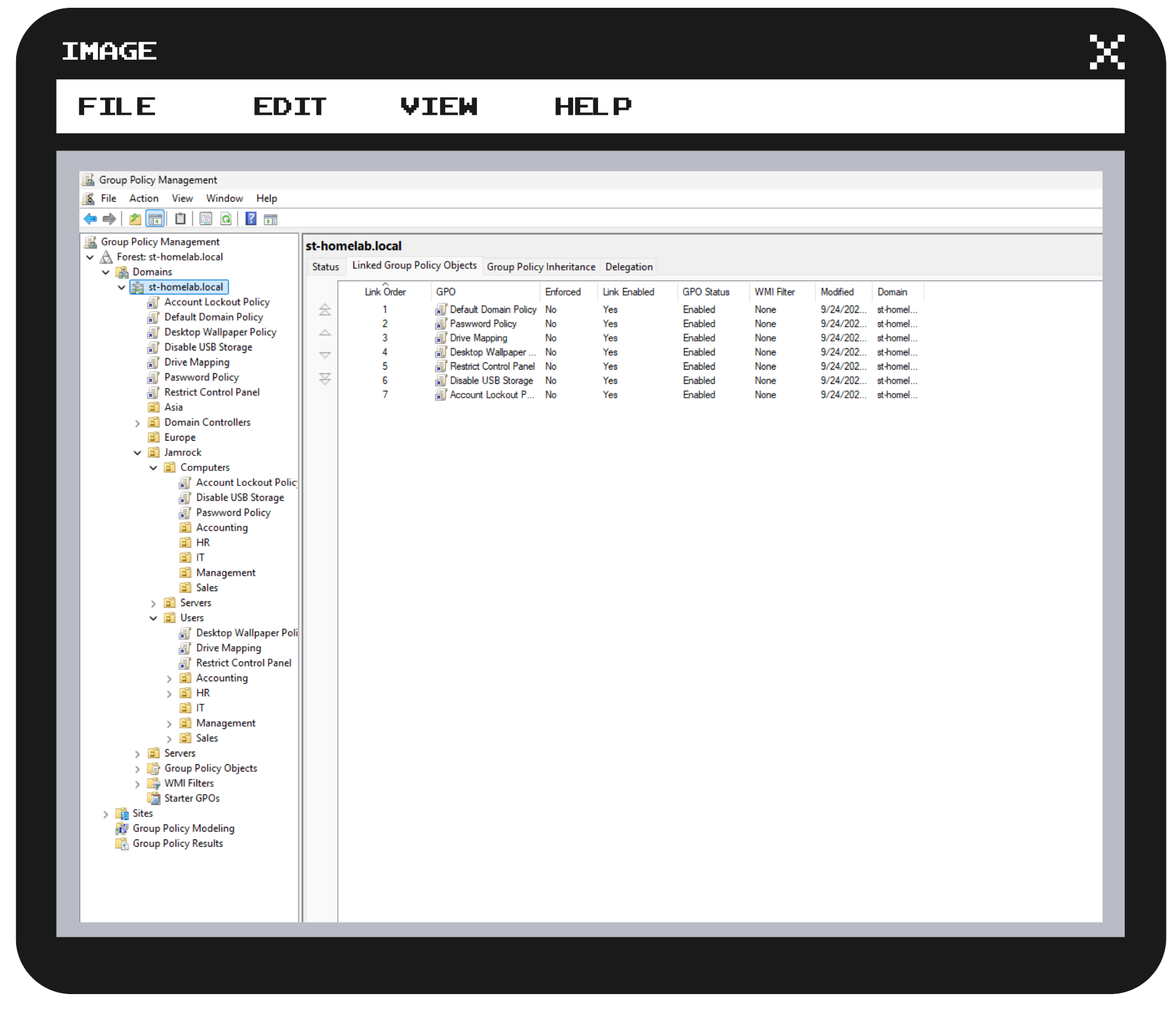
For this project, I used a Windows Server 2025 VM and Windows Client VM to explore and better understand the fundamentals of Group Policy Management by:
Creating Multiple GPOs
Configuring Policies
GPO Implementation and Testing
-
VMware
Windows Server 2025,
Windows 11 Enterprise,
Group Policy Management Console
-
Creation of various policies and preferences grouped under computer and user configuration
The policies were applied to the appropriate organizational units (OUs) which was reflected on the Windows Client
-
The differenciation between computer configuration’s general application of system settings inspite of particular users from user configuration’s aim to apply customized settings to specific accounts
The enforcement of policies are vital to access restrictions and security maintenance
Password Policy
Go to Windows Tools, select Group Policy Management, click the drop-down menu, and right-click the domain
Click Create a GPO in this domain, and Link it here, name it Password Policy, right-click the GPO, and click Edit
Under Computer Configuration, select Policies, click Windows Settings, then Security Settings, followed by Account Policies, and click Password Policy
Double-click Minimum password length, check Define this policy setting, change it to 12 characters, click Apply, and then select OK
Double-click Password must meet complexity requirements, click Define this policy setting, click Enabled, select Apply, and then OK
Double-click Maximum password age, check Define this policy setting, set to 90 days (every quarter), click Apply, and follow through
Drive Mapping
Create another GPO named Drive Mapping, click OK, right-click the GPO, and select Edit
Under User Configuration, click Preferences, then Windows Settings, select Drive Maps, right-click and select New, and then click Mapped Drive
In the New Drive Properties window, in Location, enter the appropriate path with the server name and folder (//server/folder), and choose the Drive Letter
Desktop Wallpaper Policy
Create a GPO, name it Desktop Wallpaper, and click Edit
Under User Configuration, click Policies, click Administrative Templates, then Desktop, then Desktop again, click on Desktop Wallpaper, click Enabled, enter the Wallpaper Name, choose the Wallpaper Style (Fill), and select Apply
Restrict Access to Control Panel
Create a GPO called Restrict Control Panel, and click Edit
Under User Configuration, select Policies, click Administrative Templates, click Control Panel, select Prohibit access to Control Panel and PC Settings, click Enabled, then Apply, and click OK
Disable USB Devices
Create a GPO called Disable USB Devices, and click Edit
Under Computer Configuration, click Policies, select Administrative Templates, click System, scroll to Removable Storage Access, then select All Removable Storage classes: Deny all access, and then check Enabled
Account Lockout
Create a GPO called Account Lockout, and click Edit
Under Computer Configuration, select Policies, click Windows Settings, choose Security Settings, followed by Account Policies, and then Account Lockout Policy
Click Account lockout duration, check Define this policy setting (30 minutes), select Define account lockout threshold(5 invalid logon attempts), and configure Reset account lockout counter after (10 minutes)
Implementing and Testing GPOs
Move the Restrict Access to Control Panel, Desktop Wallpaper, and Drive Mapping GPOs to the Users OU
Drag and drop the Password Policy, Disable USB Devices, and Account Lockout Policy GPOs to the Computers OU
Test that the policies were applied on the client